What is an FSE theme – full site editing
What is an FSE full site editing theme?
The difference between a classic theme and an FSE theme (Full Site Editing theme)
Templates
Differences between a classic and FSE theme
The original template is kept
A FSE theme always stores the original template; the changes that you make are stored in the WordPress database. As a result, in an emergency you can always go back to the original version of a template.
Speed and no crashes
Your customizer has disappeared
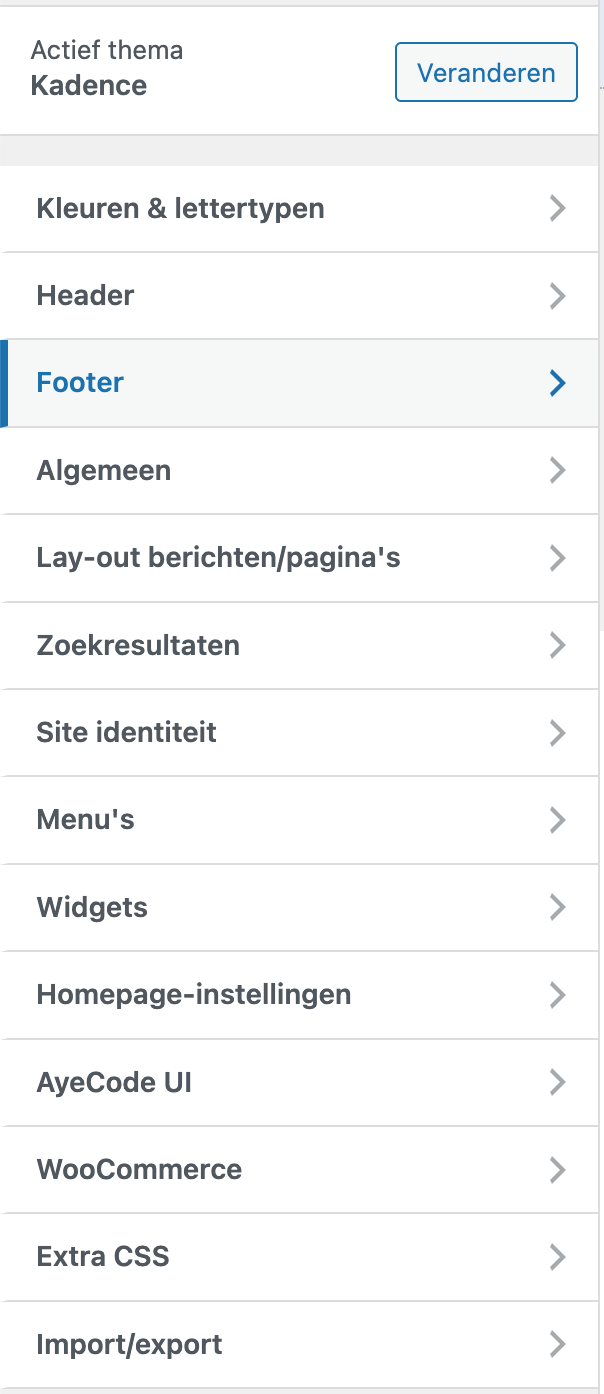
An FSE theme offers you many more options, so that does not apply. The stylebook (or stylebook) is the replacement for this. At Greenshift you reach the stylebook by opening the homepage in the processing mode and clicking on ‘styles’ (the icon looks like the Yin/Yang sign) and then on the eye icon (stylebook). In the stylebook you see all the current settings, and you can adjust them directly at Settings.
The tabs at the top depend on the installed plug-ins: if you only use the Greenshift theme, you will see fewer tabs than if you have also installed the Greenshift plug-ins. Keep in mind that every change relates to the entire website.
In addition, see the customizer of classic themes. This has become completely superfluous in an FSE theme.
All page options and widgets are gone?
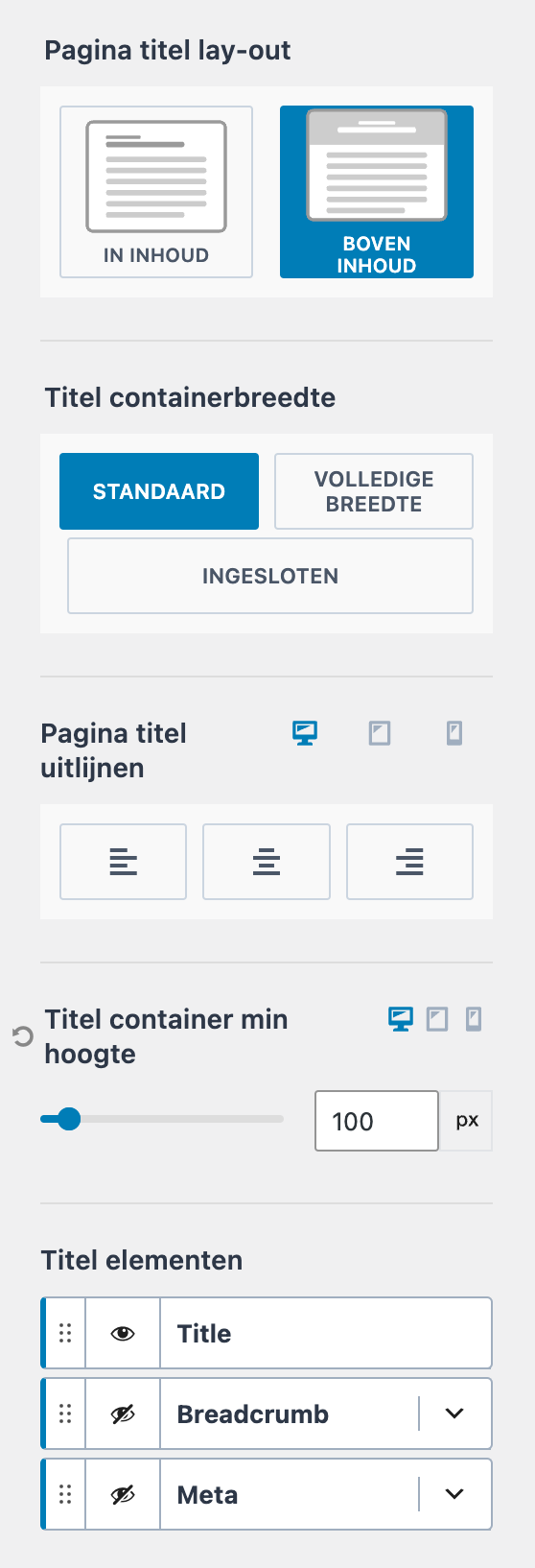
The widgets have completely disappeared. That is justified; I nearly don’t use them since 2016. They are awkward, combining widgets in one column is sometimes difficult and if you adjust one, it often influences multiple pages. Almost every website designer/builder uses columns today, and you can literally use everything there.
The options of a classic theme page are completely unnecessary in an FSE (full site editing) theme. FSE not only offers these options but an infinite number of options. And you can make as many templates, or variations on it if you like.
FSE is developing and you will notice
Headings
Although the changes in the types of headings (H1, H2, etc.) are immediately visible in the stylebook, you cannot adjust everything there yet. You do that at Admin, Display, Theme Options, Stylebook.
Colors (global)
An FSE theme uses global colors. That has two advantages. When choosing a color, you can click the right color without looking up. If you decide to adjust the style of the site, you do that with the stylebook and wherever you used that specific global color, the color is adjusted. We will be talking about priorities later.
Basic colors and night mode
Keep in mind that an FSE theme, such as Greenshift FSE, has two important types of colors: basic color content and contrast color content. The first is the text and the second is the background. Those are reversed in Night mode!
Fonts
All Google Fonts are generally available in every block. However, you can also decide to upload a Local Font, for example because you do business in Germany with extreme privacy legislation or to speed up your website load. You can upload at Admin, Display, Theme Options, Global Settings. You set it up at Admin, Display, Theme Options.
Breakpoints
You can set the transition from one device to another, the breakpoints, yourself. You do that at Admin, Display, Theme Options, Global Settings.
More settings
With some FSE themes, such as Greenshift, there are more settings. Such as the elimination of column Padding in the Row Block, the standard values such as PX, and even more. You do that at Admin, Display, Theme Options, Global Settings.
Priorities
Most FSE themes have settings for the Elements.
Elements are text, headings, buttons, links, and captions. You can set a color per element.
Also in the block editor are the settings for each block.
The color you set for each block has priority over the color of the elements. If no setting is found at a block, the system will look at which color is set for the element and use it.
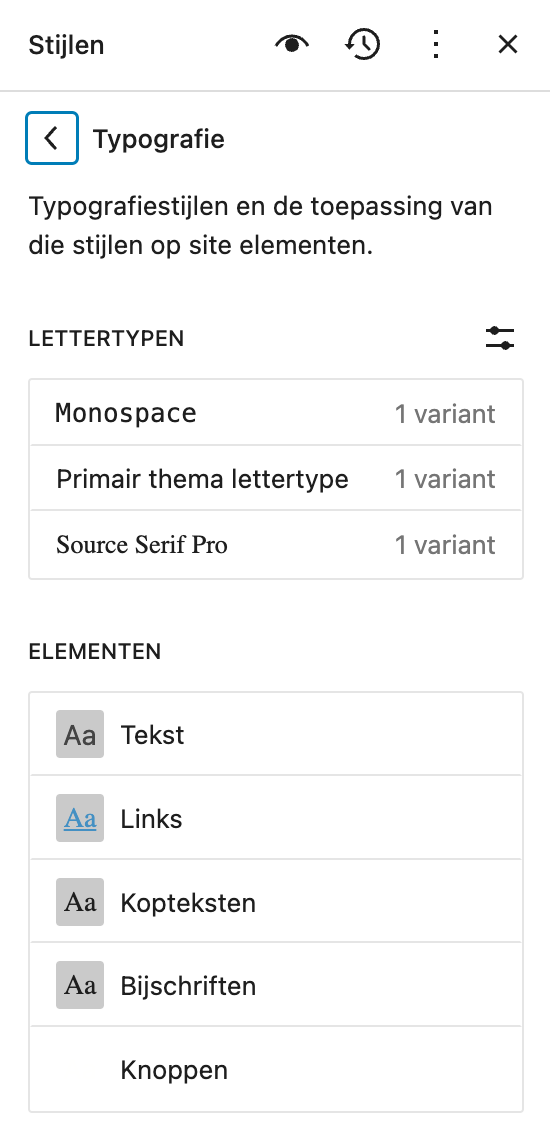
With typography, this works the same way.
You can set typography for every element. And you can set typography for every block; these have priority over the element settings.
Lay-out.
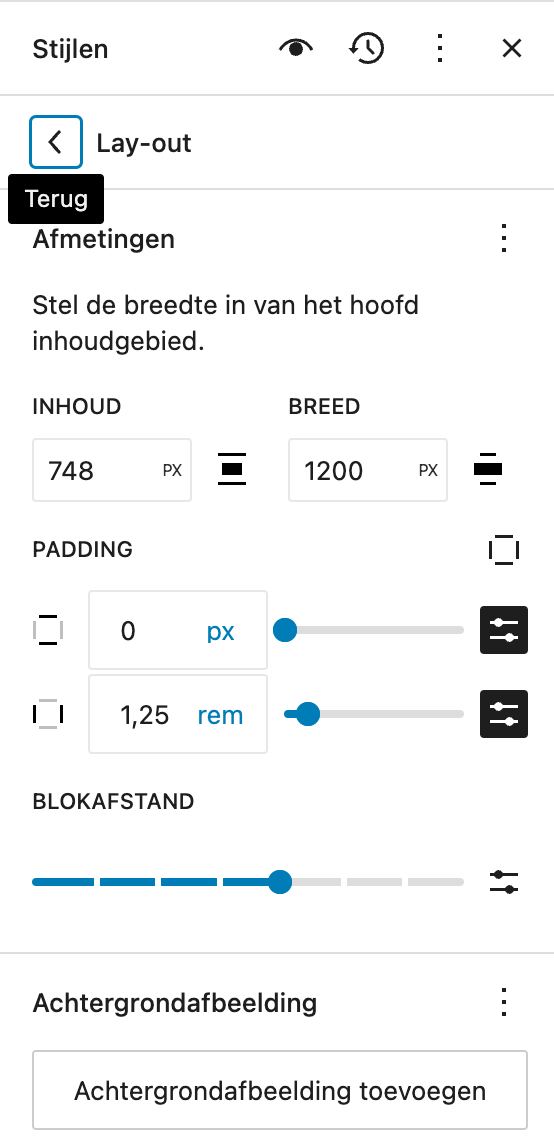
Furthermore: with layout you set the width of the content and the entire width, as well as the padding of the layout page and the block distance (for example between blocks of a query).
Header, content, and footer work slightly differently
Reusable templates
How do you change a header or footer in an FSE theme?
- Go to any page.
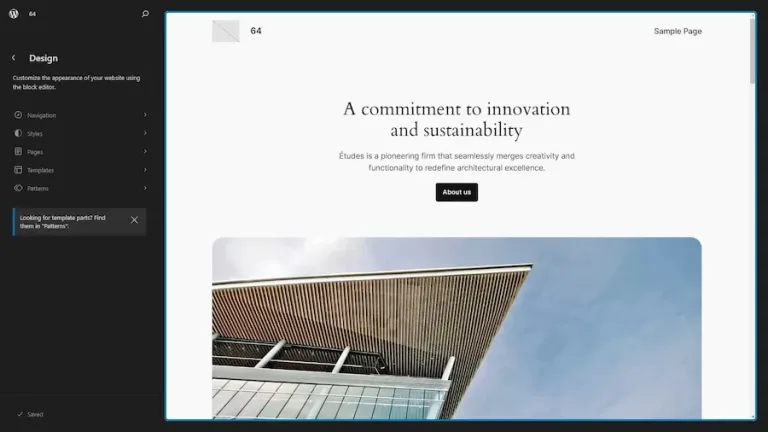
- Click on ‘Edit site’. This opens the total structure of the template of the current page, with the header, the content part (where you place the information) and the footer.
- You activate the element that you want to edit; there is a purple edge around it.
- At the top, you click on ‘Edit Original’.

Header
- The header now opens in editing mode.
- If you open the list view at the top left, you will see the build -up of the header. In principle, there is always a group at the top.
- When you open it, you see a row with a site logo block, sometimes a heading block (for the name of your site) and a navigation block.
- You can also open the navigation menu, after which you will see all the parts that the navigation menu consists of.
Each part can be adjusted as desired; colour, font, width or height, margin and padding. Once you have saved this after adjusting, the changes are made on all pages where you have applied this header.
Sticky header
- Make the group active.
- Click on Advanced in the right column.
- Choose ‘Sticky to Head on Scroll’. You can also pick a sticky color; then the header gets a different background color as soon as it is sticky.
- You can also set a transparent header.
Content
This is the middle part of the template. This is for the text and images you place for the visitor on every created page. One block is mandatory there: the ‘content’ block. Keep in mind that you are free to place any other block in the content part, but they will behave as a static block; everything in the content block is dynamic in the sense that it adapts to the texts and illustrations that you will place on a page. If it is the intention that each page contain a logo or a fixed text, it’s best to place it on the template.
Footer
In the footer you can adjust everything as desired; colours, font, margin, and padding. These changes are also implemented on all pages where you have applied the footer.
Note: I think it is a beauty error from WordPress FSE themes, but the header is sometimes asked if you want to edit the original, not with the footer. In both cases, you edit the original!
Creating a new page template
You can easily make a completely ‘fresh’ template.
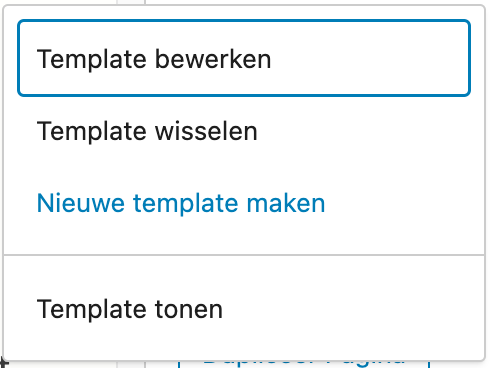
Open an existing page, and click Edit. In the right column, you click on the name of the template behind the word “template”. In the pop-up now opening, you can edit the template, change the template, or make a new template.
- If you choose to make a new template, choose a name and click Make.
- You get an entirely new, blank template.
- Select a header *, a footer *, place on the template what you want and save. Thereafter, you still have to select the new template on that page through ‘template’.
* You can select the same header and footer or create/choose another header and footer. Those will only be visible on pages with this (new) template.
- You can make all types of templates by clicking in the admin menu on display, editor and then templates.
- At the top right, click Create New Template.
- You will then see an extensive choice of the type of template that you are going to make; page, archive, index or product, etc.
Importing Greenshift Templates
If you have purchased and installed the correct plug-ins from Greenshift, you can install extra templates at the top right at the Greenshift Helpers’ icon, for example for WooCommerce.
Disadvantages of FSE-Templates
When using FSE templates, I sometimes encountered something that I experienced as a disadvantage.
- You cannot place short code in the header. Not that this is now a big loss, but precisely because some plug-ins are not yet ready, such as Google Translate, placing a short code would be a solution. That is not yet possible; WordPress doesn’t allow it yet.
- WooCommerce, while owned by WordPress …, is not yet 100% ready for FSE Blocks. For example, the check-out is still an old-fashioned classic style, with a short code, while this would be straightforward with blocks. Even Divi has had that for years.
- There are more plug-ins that are still afraid of making the switch. It is getting less and less, but they are still there. Fortunately, so many plug-ins are already ready that there is an alternative to find an alternative for the lagging plug-ins.
- The menu still has limitations. Many translation plug-ins have the option to put the language options in the menu, and that is not yet possible. Many membership plug-ins also have an option to automatically include logging in and out in the menu. That works with some plug-ins and not yet with others; often you have to create it manually. For example, the WPASE plug-in is busy adding this for FSE themes.
- What I really missed is something like Kadence Elements (or GeneratePress Elements or Blocksy Content blocks). Not the possibility to create templates, because that is an FSE native functionality, but assigning templates, headers and footers to posttypes, custom pages, tags etc. The plugin ‘FSE Template Assigner‘ ensures that this specific problem is solved because it enables any FSE theme user to assign templates, headers, and footers to everything you want!
- The big boys in the world of themes, such as Kadence and GeneratePress, are still behind with FSE. These are actually already hybrid themes (a mix of a classic and block theme) and it is precisely because of that, they now suffer from ‘the law of the inhibiting lead’. However, we know from Kadence that they are already working to release a Kadence FSE theme, so that is promising.
- Conclusion; although there are some disadvantages, the advantages are so outstanding, that I decided some time ago to make use of a FSE theme wherever possible.
Styles