Kadence blocks CSS code
Kadence Blocks, both the free and the Pro version, has many options for setting everything to your liking. Yet, even with the Kadence Blocks Builder, there is sometimes a need for CSS-code to adjust things.
Kadence blocks and theme are separate products
Because Kadence theme and Kadence Blocks (de builder) are two separate products, we have created separate CSS pages. The CSS code for the Kadence theme can be found here.
Hide button Full-screen Kadence Video Block
The video block from Kadence Blocks Pro shows a “full-screen” option as default. With this CSS code, this option is hidden. You place this code in the extra CSS of the theme (or a code plugin).
/* hide button Fullscreen Kadence video block */
button svg.icon--not-pressed{
display: none !important;
}
Kadence CSS – Aligning the buttons
If you have multiple columns next to each other with a button in each column, there are enough settings to get the columns linear, but not the buttons. Or the buttons do align, but not the text blocks. This CSS code ensures that the buttons are in line with each other. The first example with the three columns is “default”, so without the CSS.


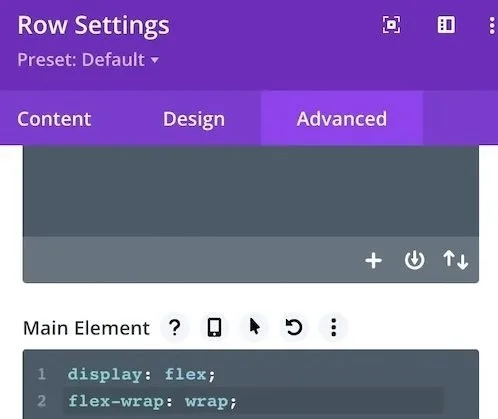
Important: it is best to place this code in the Kadence Row Block, at Advanced / Custom CSS. If you placed it with extra CSS of the theme, the code would influence all the columns and buttons on your entire website. Even where you may not want this.
/* Alignment buttons in a row-block with several columns - place in a row block / advanced / custom CSS */
selector .wp-block-kadence-column .kt-inside-inner-col {
  display: flex;
  flex-direction: column;
  flex: 1;
}
selector .wp-block-kadence-column .kt-inside-inner-col .wp-block-kadence-advancedbtn {
  margin-top: auto;
}
Buttons Kadence alignment left
By default, you can do a lot with the buttons from Kadence Blocks. There is currently one significant option missing. If you apply a button with an icon at the beginning, the fact that the buttons are centered by default, is suddenly ugly.
When using icons, alignment left looks a lot better. With this code that is solved in one go. The advice is not to place this code in the extra CSS of your theme because then all buttons of your entire website will be adjusted. Place the code on your page. The Kadence Pro theme has that option. Open the page, click on the large K button at the top right. At the bottom you see a tab ‘page scripts’. There you place the CSS code for the buttons. Below, you can see what it looks like without the CSS code for the Kadence buttons, and what it looks like with the code.
When using icons, alignment left looks a lot better. With this code that is solved in one go. The advice is not to place this code in the extra CSS of your theme because then all buttons of your entire website will be adjusted. Place the code on your page. The Kadence Pro theme has that option. Open the page, click on the large K button at the top right. At the bottom you see a tab ‘page scripts’. There you place the CSS code for the buttons. Below, you can see what it looks like without the CSS code for the Kadence buttons, and what it looks like with the code.


.kt-btn-inner-text {
  text-align: left;
  width: 95%;
}
Placing CSS code
We assume that you already know how to place CSS. If you don’t know that yet, look here:
Do you use a different theme?
The basics of the CSS code are the same, only the targets (the elements that are influenced by the CSS code) are usually different.
Then search for the right classes / targets, via the help desk of your theme, Google or by searching for it in page code, and replace the classes in these CSS snippets with your classes.