How to setup SMTP for email
This article has multiple functions:
- Set up SMTP so your emails arrive.
- Prevent your emails from being marked as spam.
- Affordable and reliable.
SMTP
This post is a general explanation of setting up SMTP on your WordPress website so that your emails are sent correctly.
Why use SMTP?
WordPress has a default way to send emails. This is used for sending system notifications, login and password emails, but also for sending submitted forms and the like. However, using the default email sending method has major disadvantages.
- 90% – 100% of sent emails end up in the spam folder or are even immediately deleted entirely.
- Every WordPress hosting provider enforces a limit on the maximum number of emails that can be sent per day.
- The emails do not actually come from you, but are sent by your web hosting provider; they simply list your name and email address as the sender. That is why these emails are almost always flagged as spam.
What is SMTP?
SMTP is an abbreviation for simple mail transfer protocol. In plain English, it is a set of rules for sending emails from any application (website, database, mailbox, computer, smartphone, etc.). If you do this correctly (set it up properly), emails are delivered to the recipient with almost 100% certainty and are very rarely marked as spam. SMTP means that you do not use your provider’s server to send emails. A special SMTP plug-in on your site sends the email to an SMTP provider. This SMTP provider sends the email to each recipient using a reliable protocol.
How do you integrate SMTP on your website?
That is actually very simple – once you know how.
- Ensure you have an account with a reliable SMTP provider.
- Ensure your DNS is authorized to allow your SMTP provider to send emails.
- Ensure your DNS meets all requirements (SPF, DKIM, and DMARC) to avoid being flagged as spam.
- Install an SMTP plugin on your website. These are usually free.
The explanation of each part follows now in this post!
First, an explanation about D.N.S.
First, we will give a brief explanation of DNS. When you register a domain name, it receives a DNS record (Domain Name System). The entire internet uses a kind of phone book to know which domain name points to which website. DNS is necessary for this. The DNS of your domain name specifies, among other things, where emails to that domain should be sent, where visitors to your website should be directed, and a number of records (SPF, DKM, and DMARC) that guarantee the recipient that you are indeed the sender of the messages (emails) in question, meaning that it is not spam. The DNS is updated at the hosting provider where your domain is hosted. This can be the same company where your website is hosted, but it can also be a different company.
SMTP account
You need an SMTP account.
The SMTP provider, as it is called, forwards the email that your website passes on to them. This ‘passing on to them’ is done via an SMTP plug-in; more on that later. There are several good SMTP providers, with prices varying widely. When making your choice, you should pay attention to:
The SMTP provider, as it is called, forwards the email that your website passes on to them. This ‘passing on to them’ is done via an SMTP plug-in; more on that later. There are several good SMTP providers, with prices varying widely. When making your choice, you should pay attention to:
- Some offer a free account with, for example, 100 or 300 emails per day, at no cost, but suddenly become expensive once you exceed that.
- Other SMTP providers seem expensive but then immediately give you the option to send 50,000 emails per month.
- Not every SMTP provider works well with every newsletter plugin. This is because an undeliverable email address must be passed on to the newsletter plugin. Therefore, a newsletter plugin requires two-way communication with the SMTP provider.
Good SMTP providers are Brevo and SMTP2GO. They offer generous free daily emails, up to 300 emails per day, and they work excellently with multiple newsletter plugins. Should you need more ’email credits’ than those 300 per day, there is the option to convert the free account to a pay-as-you-go account where you purchase credits, or in the case of SMTOP2GO, to an affordable monthly rate.
SPF-records
Ensure that the DNS SPF record of your record contains all email senders for your domain. Below you can see an example of the value of an SPF record. The “v=spf1 part at the beginning and ~all” at the end is almost always used. Every sender is listed, with include: followed by a value you receive from your SMTP provider.
In this example, there are two companies the client uses for email: Hostinger (where the email boxes are hosted) and Brevo (this SMTP provider sends the emails from the website and an online database).
In this example, there are two companies the client uses for email: Hostinger (where the email boxes are hosted) and Brevo (this SMTP provider sends the emails from the website and an online database).
"v=spf1 include:spf.brevo.com include:_spf.mail.hostinger.com ~all"DKIM
Ensure that the domain’s DNS has a DKIM record. The recipient’s server uses your DKIM to verify whether the domain holder (you) actually sent the message. If you send email via two different SMTP providers (for example, for newsletters and forms from your website, and another for your regular mailboxes), a DKIM record is required for each SMTP provider. You receive the value of these records from your SMTP provider.
DMARC
DMARC tells the recipient’s server what to do with messages that fail SPF or DKIM checks. Messages must be authenticated with SPF, DKIM, or both to pass DMARC checks. The authenticating domain must be the same domain as in the From header of the message. Your SMTP provider should provide you with the correct DMARC value to set in your domain’s DNS.
Domain verification
Most SMTP providers require you to prove that you are the legitimate owner or user of the domain. Otherwise, you could use their services to intercept all emails from, for example, Google, your employer, or an ex-partner. This essentially means they ask you to create an extra DNS record, according to their guidelines.
SMTP verification
Once everything has been set up, by the website owner or webmaster, you can usually manually let the SMTP provider check the status of your DNS. The provider then checks whether the DNS records are set correctly. This can take 1 to 48 hours. That’s because there are many copies of the DNS registry worldwide, and your DNS must be updated in every version; that takes a while. Also keep in mind that both your computer or tablet and many providers, have a cache where the old DNS values are stored. Clear your cache and be patient while others update theirs.
Use an SMTP plugin
- You have chosen an SMTP provider and created an account.
- According to the list here, you have adjusted your DNS or had it adjusted with the SPF, DKIM, DMARC and SMTP verification record.
Now it is important to download a good SMTP plugin. This is not used for sending newsletters; only for transactional emails, such as WordPress notifications, submitted forms, etc.
We recommend using one of those SMTP plugins:
We recommend using one of those SMTP plugins:
To configure an SMTP plug-in, you need the following information:
- Name to identify the email account
- Email address
- SMTP server
- Port (default 465 or 587)
- Login username (sometimes your email address, sometimes something else)
- Login password
- Security protocol, such as SSL or TLS (usually SSL)
You can find this information here:
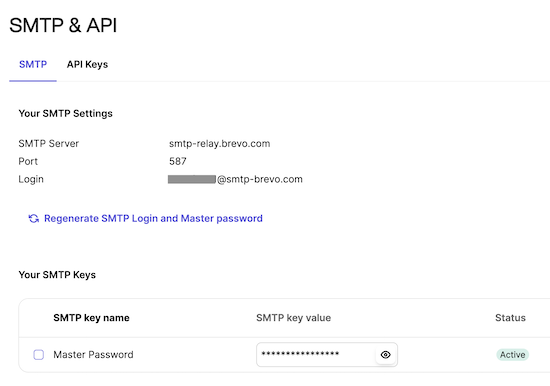
- Open the Brevo.com website and log in
- You have already set up your domain
- In the top right corner, next to your name, click on the menu
- Select SMTP and API
- The details you need are listed under the SMTP tab
- The security protocol is not listed: use SSL
Once you have entered this information, it is advisable to send a test email. Every SMTP plugin has this function. If the test fails, review all the entered data. Keep in mind that a space at the beginning or end of text is also a character… remove it. Sometimes you need to change the port. The ports for SSL are 465, 587, or very occasionally port 25.
If you have a database that sends emails
By default, a database sends emails via the hosting. This can be your own computer or, in the case of an online database, the hosting company. If the database is located on your own computer, it often uses the most frequently used email account in your mail app.
An online database very rarely uses a personalized SMTP protocol in your name, because that would require you to change your DNS. They send everything via their own SMTP account.
Whether you host yourself or have an online database, in both situations it is advisable to send all emails via your own SMTP account. That way, the emails are not flagged as spam. If you switch SMTP providers, do not forget to reconfigure your database as well.
An online database very rarely uses a personalized SMTP protocol in your name, because that would require you to change your DNS. They send everything via their own SMTP account.
Whether you host yourself or have an online database, in both situations it is advisable to send all emails via your own SMTP account. That way, the emails are not flagged as spam. If you switch SMTP providers, do not forget to reconfigure your database as well.
Emails that you send from your own equipment
Setting up email accounts on a computer, tablet, or smartphone is usually done using the details provided by your email provider. This usually functions poorly to reasonably well. Why not well? There are several reasons for this.
- Most people use a mailbox provided by their website hosting. While the hosting provider might be very good at hosting websites, they are rarely specialized in sending emails.
- You share the reputation of a server and IP address with dozens to thousands of others. If emails from one person are occasionally mistakenly flagged as spam, it affects the reputation of all users of that server or IP address.
- Ensuring an email server has a good reputation, and especially maintaining it, is a full-time job. That is essentially how professional SMTP companies earn their money, and why they truly deserve it.
For these reasons, it is advisable—especially if you have the impression that an email sometimes does not arrive or ends up in the spam folder—to also send your regular emails via your own SMTP account. Please note: this only concerns sending emails. You simply configure the server details for receiving emails using the information provided by your provider.

Want to know more about the DNS system? Follow this link
SMTP really needs to
Twenty years ago, SMTP was still a consideration; should I or shouldn’t I? Nowadays, it is truly a must. Having your website hosting handle messages and emails from your website really only results in spam. So do it.
Brevo SMTP
Brevo (formerly SendinBlue). It is one of the best SMTP providers.
They have a free account with 300 emails per month and a Pay-as-you-go plan, where you simply buy credits, with a rate of €2.50 to €5.00 per 1,000 emails.
They have a free account with 300 emails per month and a Pay-as-you-go plan, where you simply buy credits, with a rate of €2.50 to €5.00 per 1,000 emails.