HTML anchor link – scroll to target
What is an anchor?
Expanation anchor
- An anchor has been created a little lower on this page (example anchor).
- An anchor link is placed in the button above (#example-anchor).
- Try it out (click on the button).
How do you create an anchor?
- What do you want to refer to? (the goal).
- What do you want to use as a trigger? You can use virtually any element on your page as a trigger: text, a heading, an image, or a video.
Place an anchor at the target
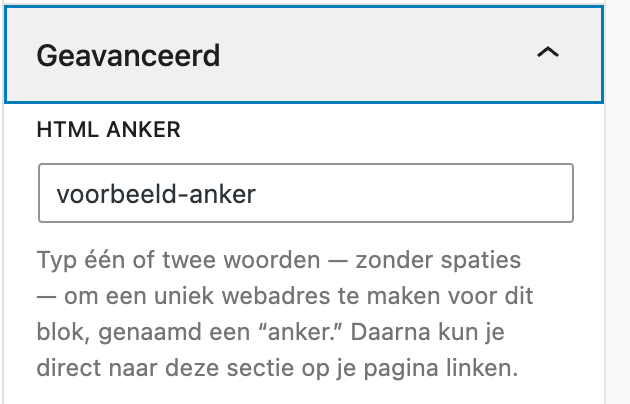
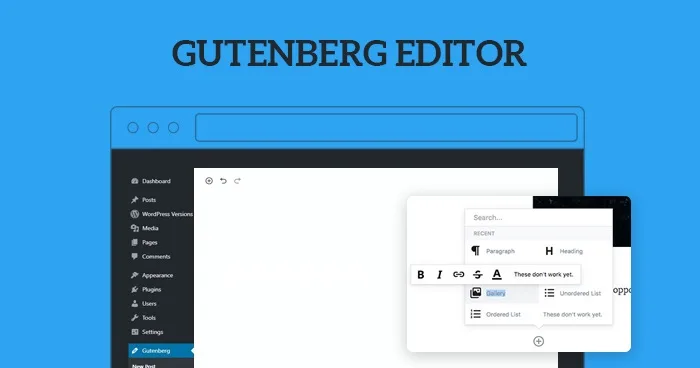
Every block in a good builder has a field somewhere under advanced or options called HTML anchor.
In that field, type the name of your anchor. In this example, we use example-anchor.
Place an HTML #anchor with the trigger
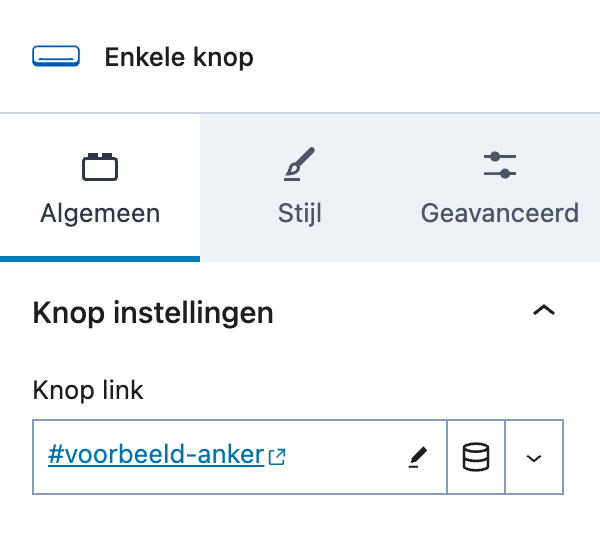
You place the anchor in the same way as you place a regular URL link. The only difference is that you are not placing an external link or page link, but an anchor.
In the field where you place the link, type the name of the anchor with # (hashtag) in front of it, without a space. In this example, we use #example-anchor.
In this example, the button at the top is the trigger and the blue code block at the bottom is the target. Important: for the target you only use the anchor without # and for the trigger with #.
This is the target the anchor button refers to. This could also have been an image or a download, for example. Under HTML anchor, this is placed: example-anchor. The button contains the link with #example-anchor.Anchor applications
Buttons as a menu
As you saw on this page, you can have a button link to text or an image elsewhere on the page. However, you can also create a submenu (multiple buttons side by side) that each link to a specific part of the webpage using anchors.
Anchor link to another page
You can also combine an anchor with a URL of another page.
You place the target anchor just like in the example. Furthermore, you essentially do the same for the trigger, but instead of just putting # in front of it, you put the entire URL.
So it becomes: https://name-of-the-page/#example-anchor
The easiest way to find the exact URL of the page + anchor is to open the page as if you were a visitor and click on the trigger. The complete URL will then appear in your browser. You can use copy/paste to apply this elsewhere to a trigger on another page. If someone then clicks on that trigger, the browser not only goes to the correct page but immediately scrolls to the correct location on that page: the anchor. This is useful if you are placing a page link and want to immediately draw someone’s attention to something.