Modern Fields – the custom field miracle
Modern Fields – the custom field miracle
Now there is a new way to make the core blocks dynamic!
It’s so easy, your core blocks will love custom fields! And you will too.

This article is not about custom fields. It’s about a miracle plugin that turns most core (native) WordPress blocks into Dynamic blocks. Yes, you read that right: those two words in the same sentence… core and dynamic.
Until today there were 2 ways to use dynamic/custom fields. Now 3.
- You use an advanced pagebuilder and a custom field plugin. This is what I did untill now.
- You are good at coding and use the WordPress dynamic binding to connect custom fields to core blocks. I tried that: it’s time consuming and everything except flexible.
- Now there is a third option. Using Modern Fields without a pagebuilder plugin.
Step 1
- You don’t need a page buider. You can use one, but you don’t need it.
Step 2
- You won’t need at any coding with Modern Fields. The native WordPress editor is enough.
Step 3
- Install the Modern Fields plugin. Yes, it’s a brand new kid on the block. So if you never heard about it: you’re not alone. Well, on first sight you might think ‘just another custom field plugin’, what’s the big deal? That’s what I thought. Beeeehh, wrong. Sorry, but I will explain.
Modern Fields plugin
Everything is WordPress block editor based.
- It is WordPress block editor based. Totally. That means you go to the Modern Field setting, click on Add a new fields group (untill this step it’s business as usual) and suddenly you created a blank page. You name it and start adding the fields you require from the blocks inserter. Did I just write from the blocks inserter? Yes, every field is a block. You add the field-blocks you need, and you might even add a title, subtitle or paragraph with some explainer text for the end-user (cliënt). Just like any other block the settings are in… settings on the right.
Target to show the fields
Just like you are used to, you can decide where to show and use the custom fields. But the how and where are fascinating.
Note: some of these options might require the Pro version of Modern Fields .
- Posts or pages, all or handpicked
- On certain templates
- Homepage only
- Blog home only
- Taxonomy based
- User based, specific or user-role based
- Block based (!)
- Options page and pick the location
Decide how to show the fields
- Metabox (bottom page)
- Inspector
- Separate panel
- Modal
- Drawer
Who get to see the custom fields?
- Select the roles that can access the group
How to render the values of the custom fields of Modern Fields
Let’s start with the fact that they don’t offer shortcode. That era is gone. They do offer different ways to show the values however.
1) The way you know, get _field xxx
For the people who require it; it’s there. I think ACF started with it and it’s the only way still for some. To get an idea, I’ll give you some code:
<?php

// Standard functions
ModernFields()->fields->theField('my_field');
ModernFields()->fields->getField('my_field');

// Shorthand functions (if ACF not enabled)
the_field('my_field');
get_field('my_field');
2) Professional pagebuilder plugin
I won’t go in detail ablout this, but when you used one, you know that most progfessional builders have the option to use custom fields. This article is about being able to use custom fields without a professional pagebuilder plugin, so I leave it at this.
3) Use the Attributes (yes, really)
For some this is new, for others not, but certainly new for me when working with a custom field plugin.
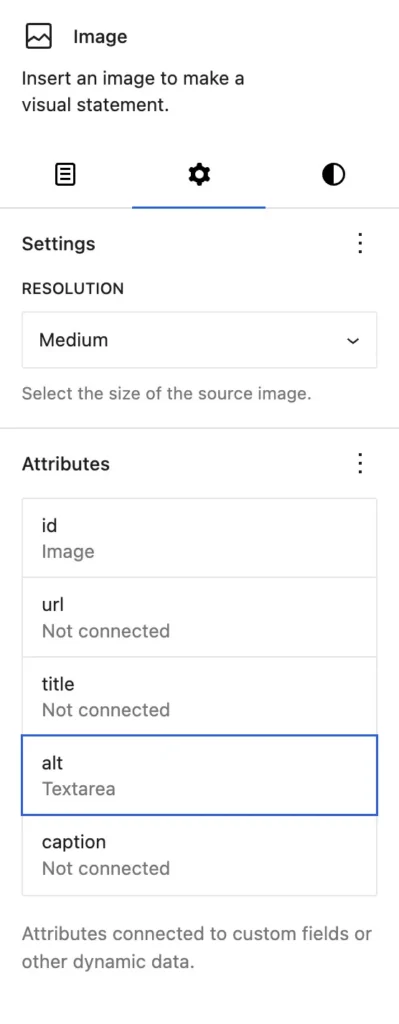
You created the Fields group and deceided what posts to target.s soon as you did that (and the group is active) most core blocks suddenly have a new tab: Attributes.
It is a fantastic way to make the default Gutenberg blocks really dynamic!
To see all the attributes available
- Just click on the Ellipsis (the three dots)
- You will see the available attributes. Some blocks have only one, for example for content, while othere have more. The image block for example has id, url, title, alt and caption.
- id is the id of the image in your media.
- url is used when you provide a url to a certain media file
- title is, well, just a short, identifying name for the file or artwork.
- alt is the alt text. This is an important one, because you link it to a custom field and provide the text read by the browser and search machines like Google and Bing.
- caption is the title shown frontend near the rendered image. It’s not used frequently, except in a blog or catalog possibly.
- linkTarget is the way you want a link to work, like _blank, _self, _parent, _top or framename.
- When you click on one of the attributes, it shows a popup with the custom fields you just created in the field group. Once you chose one, there is a connection between the block and the custom field.
- Done.
What core blocks have those attributes?
Button block
- url, text and linkTarget
Paragraph block
- content
- works with text field, text-area or rich-text field
Heading block
- content
- works with text field, text-area or rich-text field
Quote block
- content
- works with text field, text-area or rich-text field
Accordion block
- the core blocks you use in the accordion, the title itself is not dynamic
Image block
- id, url, title, alt, caption
- works with text field, text-area or rich-text field
Media & Text block
- The image part is not dynamic, so the image will be fixed with the template
- The core blocks you use are dynamic
As you most, if not all the blocks you usually use are dynamic now and show the value of custom fields. Why not all the core blocks? Because although Modern Fields offers this functionality, it only works if WordPress integrates the binding tech under the hood. So currently I use a special plugin to use images as a background in the cover and columns block, because WordPress didn’t integrate that yet.
The beauty doesn’t end here.
What about other plugins, like tab plugins, reviews, etc.? They say they don’t offer dynamic values / custom fields. Well, as long a s they are build for the WordPress editor and use core blocks, they are dynamic from now on. For example the Easy tabs block plugin is not build to be dynamic. But they build it completely with core block, even the tabs itself. That means that every part of the design is dynamic and can show dynamic content. Well, as long as you have Modern Fields installed.
For the professionals
Modern fields can do al lot more, and i mean really a lot. You don’t need to use it (no stress), but under the hood it’s a real powerhouse.
Build your blocks
Yes, you can build and register your custom blocks. They can show text, image, or just the content of other custom fields. It’s all up to you.
Two way relationship
I am not talking about the relationship field (they have that too).
The connection between the custom field and a core block works two ways. The block shows the content of the custom field. If you edit the text in the block while Editing, the content of the custom field changes accordingly!
Several Option pages
You need more option pages? Maybe even targetted at different users or user-roles? No problem, Modern Fields has no limits.
Block to show relationships of repeater items?
If you decided to go core and not install a pagebuilder, you will miss a relationship query and the repeater block. Modern Fields offers both, so you don’t have to live without them. And they work fast and reliable.
But I do work with a pagebuilder
Well, I have tested Modern Fields with a few pagebuilders myself.
- Greenshift: perfect.
- Kadence: good, but not perfect. Kadence is not that good at handling dynamic data.
- GenerateBlocks: perfect.
Conclusion
I really, really love Modern Fields, And no, I don’t have an affiliate code (yet). It’s an incredible, fast, versatile, ingeniously created plugin for custom fields. In my opinion its the first perfect custom field plugin. The pro version is in progress, and even the beta version was very impressive.
Advice
Use Modern Fields, buy it once it is available. If you decide to go core all the way, combine it with a theme like Twentig One (free) or Neve FSE (free) and extend the WordPress core block editor with Twentig builder (free). Twentig builder makes the WordPress block editor more pro; better breakpoints, buttons with icon, improved query and a lot more. Core, but better. If you are a professional, you might need template assignments: this is the perfect plugin for that.