The native FSE navigation block is not workable for clients
If you have built a site with an FSE (full site editing) or block theme, you have probably started with the native Navigation block. It looks fine at first. Then you try to style one item, add a new page, or hand the menu to a client. That is where it stops being workable.
Where the native FSE navigation block falls short
The core Navigation block is not broken. It inserts a menu, it collapses on small screens, and it ships with every block theme. For a brochure site that never changes, that can be enough. For a real client site, the gaps show up quickly.
It is hard to target
Menu items do not get a class you can rely on. Styling one link, one button, or one translated label means fighting generated markup, or wrapping the whole menu in CSS that hits everything. Translation plugins that need a class such as notranslate on a single item have nowhere clean to put it. Selectors like that break the next time WordPress changes the block.
Adding a page or a post is awkward
A new page should be a small job: open the menu, add the item, save. In the Navigation block that job lives inside the header template, in the site editor, between nested blocks. The client has to find the right template part, open the right block, and leave the header intact. That is a designer task dressed up as a content task.
There is no useful overlay
On mobile, the native overlay is a list. You cannot place a logo, a short line of text, or social icons around the links in a layout you can actually design. Submenus often open as one long expanded list, and the only control is the small arrow. There is no editing mode that lets you build the overlay as a layout.
A client who manages the site cannot do this
This is the part that decides it. If the client has to change the menu themselves (a new service page, a seasonal item, a link that should only show when someone is logged in), the native block is not a realistic handoff. They will call you, or they will break the header. For a site the client maintains, the FSE navigation block is not workable.
Dynamic Block Navigation
Dynamic Block Navigation is a navigation block made for FSE and block themes. You place it in the header the same way you place the native Navigation block. The menu, the mobile overlay, and the day-to-day edits are built for the way a site is actually maintained.
What you get
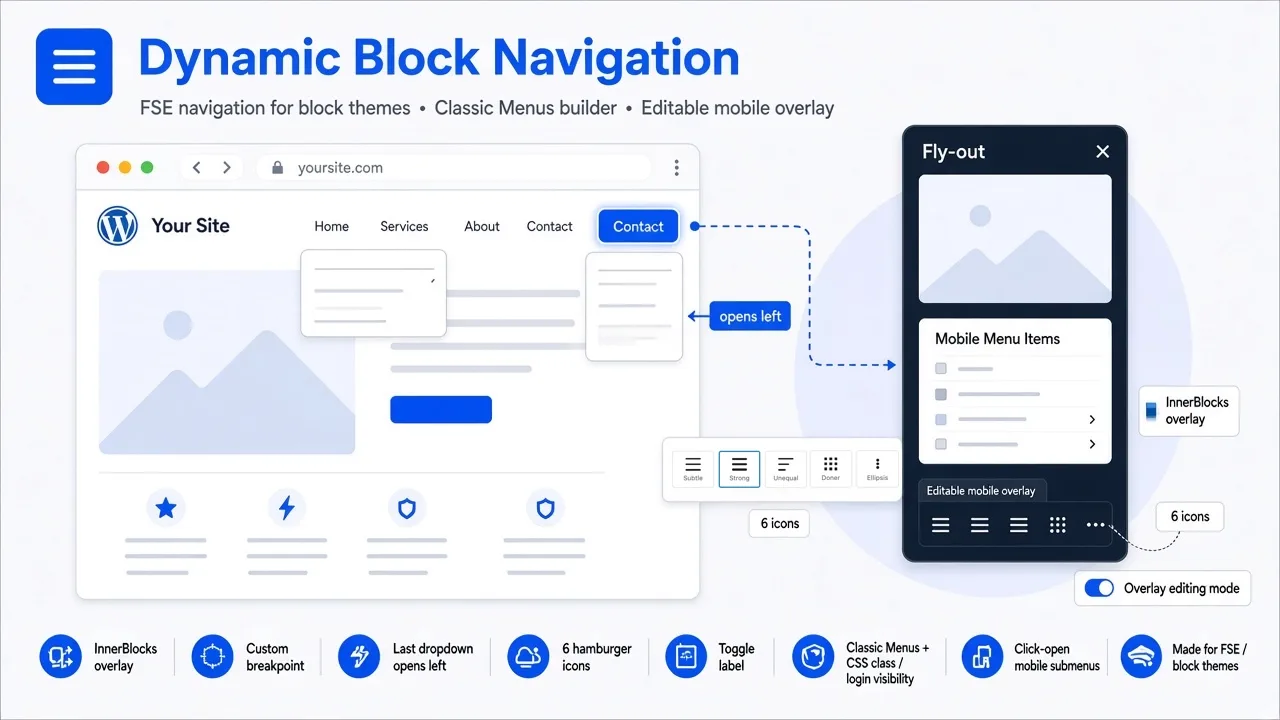
- Inner blocks in the mobile overlay, so you can place a logo, a heading, or social icons before and after the menu
- A custom breakpoint, so the menu switches to mobile when your layout does
- The rightmost dropdown can open to the left, so it stays on screen
- Six icons, with an adjustable icon height
- A toggle label on the mobile menu button
- A mobile overlay editing mode, for a full or partial overlay
- A classic-style menu builder, with a class on every item
- Logged-in and logged-out visibility per item, without an extra plugin
- Open a mobile submenu by clicking the menu item, not only a tiny arrow
- An aria label on items
A menu the client can actually change
The menu is built in a classic-style menu builder. Adding a page or a post is a normal menu edit, not a trip through the site editor. Each item has its own class, so one link can be targeted without restyling the whole bar. Items can be hidden for logged-in or logged-out visitors.
The plugin adds two blocks: Dynamic Block Navigation, and a Mobile Menu Items sub-block. Put the navigation block in the header. Put the Mobile Menu Items block anywhere inside the overlay, and add other blocks around it. That is the overlay the native block does not give you.
Made for block themes
Dynamic Block Navigation is a block for the header template, with the controls an FSE site needs: a custom breakpoint, a real mobile overlay, icons, a toggle label, and a menu a non-designer can keep up to date.
The plugin is free and is only available from the WP Insight page. Updates are published there as well. Installing a new version overwrites the plugin. Existing menus stay in place.