Documentation Insight Pricelist plugin
Insight Pricelist has a free plugin and a pro plugin.
Important: the pro version totally replaces the free version.
Free features settings
Admin only
- All settings are for Adnin only.
- The advantage is that an editor can edit and save list / pricelist while the settings remain intact.
Lines – readabilty
Line between product name and price
- The line between product name and price can be applied in all layouts—single-column, two-column, and tab-style [pro].
- You can set a custom color.
Line beneath
- The line below the product can be applied in all layouts—single-column, two-column, and tab-style [pro].
- Two-column layouts (available in both the free and Pro versions, as well as the ‘tab-style’ layout in the Pro version) take the length of the text into account:
- At widths of 48rem and above, the line beneath a row extends across both products, regardless of whether the name or description on the left is longer than the content on the right.
- On mobile devices, products are stacked, and each product retains its own individual line.
- You can set a custom color.
Width
- Container: the pricelist width is restrained by the set width of the container (section, group, column, row-block).
- Wide: the width set in the theme as the wide width. Not all themes are the same; if the width cannot be found the fallback is 1200px (75rem). It also never grows wider than the screen minus 2rem, so 1rem stays free on each side.
Show Pricelist title
- The pricelist can be shown – or not.
- Default is off.
Links
- The free version already has the option to use URLs as a link.
- There are two options:
- Show URL: the url is shown in the same font-type and color as the description text.
- Use Product name as link: the product name is the link (it shows a link icon after the name) and has an underline on hover only.
Fonts
- The plugin is built around the theme and fonts you already use on your website.
- The plugin is ultralight and doesn’t use other external or integrated fonts for speed and safety.
- You can select between ‘inherit’ (set font in the theme) or the fonts found in the theme.
Currency symbol
- Set the currency (optional) with a symbol or three-letter currency code (like $, € or EUR).
- You can choose between before the amount of after the amount.
- Note: You can use , or . See Schema [Pro} as well.
Classes
- Every pricelist item has a class field.
- Extremely useful to target a title, name, description, etc. directly with some CSS.
- Indispensable for certain translation plugins to specify which items should or should not be translated.
- Example: ‘notranslate’ for the GTranslate plugin.
- If you use more classes than 1, separate them with a space.
Shortcode
- You can add the list to a page or post using a shortcode. You can find this shortcode in the list of price lists, as well as within the price list itself.
- Place the shortcode in the shortcode block in Gutenberg, or in the equivalent block provided by your page builder.
Pro features
- Available per price list under “Settings.”
Export import
Export
- The “Export” function downloads the list as a JSON file (also available as a row-level action).
- Each product in the export has two image fields: the Media attachment ID, and
image_urlfrom that file. On an HTTPS site, that URL looks likehttps://yoursite.eu/wp-content/uploads/2026/10/dish.jpg. - You can export and import on the same site as well, so use it as a backup.
Import
- The “Import” function replaces the sections and settings of the currently open list, while the title remains unchanged. Images are included, provided their URLs begin with “https” and end in .jpg, .png, .gif, or .webp.
- The
httpsand extension check runs only when the file has to be downloaded onto another site. Importing back into the same site keeps the existing Media ID and does not download the URL again. - It is one list per file, not all lists at once.
- Import needs an existing list to import into. If you delete the list itself, the file does not recreate it.
- The list title, slug, and published or draft status are not part of the file. Import leaves those as they are.
If you already deleted the original list
- If you already deleted the original list and wish to recreate it with a backup (export) file.
- Create a new list, save it once, then use Import into this list. The sections, products, colors, and other settings from the file replace whatever is in that new list.
- Save once first, because a brand-new unsaved list does not show the import button yet.
- The new list keeps the title, slug, and draft or published status you gave it. Pages that used the old shortcode need the new slug. Photos come back when those files are still in the Media Library.
Images
- Images can be toggled on of off. The default is off.
- You can specify the width and height in pixels (ranging from 16 to 300; the default is 80×80).
- The 300-pixel maximum ensures the list does not turn into a photo gallery. Once enabled, an upload field appears for each product. If you disable “Images” later, the photos are preserved.
- Products without an image will display an empty space of the same dimensions, ensuring that the product names on the left remain aligned.
- Images are always set to “cover”—they fill the designated space and are cropped to ensure uniform dimensions.
- On screens narrower than 48rem (where the list is displayed in a single column), images shrink to a maximum width of 72px. The height adjusts according to the set aspect ratio; for example, a 300×150 image will remain wide rather than becoming a square. An image already set to 40px will remain 40px.
Tab-style
- The pro version has the option ‘Tab-style’.
- In Free the sections are shown stacked, one above the other.
- Tab-style shows the section names next to each other and the active tabs show the content of that section only.
- Ideal for restaurant menus, product groups, age-groups, different plans, etc.
- You can set the default active section (if that section is deleted, the first section is the fallback).
- The active tab has a colored underline; just set a color.
Center Section and slogan
- In Pro you can sel;ct left of center alignment for both the section name and the slogan.
Class per section
- The free version already offers a class field for the sections in general.
- However, it is quite common to want some section names translated while leaving others as they are—for instance, if a name is a brand or a widely recognized term, such as “Quiche Lorraine.” You can also use this feature to assign a different color to each section name.
- For this reason, the Pro version includes a dedicated class field for individual sections. You won’t find this in the general settings; instead, it is located within the builder, to the right of the slogan, and is marked with an
<>icon.
Product Schema
- “Product schema” can be enabled or disabled for each list.
- This generates an “ItemList” of products.
- Price is included only if the value is a numerical amount (e.g., 15.50) and the currency is specified as €, $, £, ¥, or a three-letter currency code.
- Price ranges (e.g., 12–15) are excluded.
- A price typed as
15,50or15.50is included in the schema. The page still shows the price exactly as you typed it. Inside the schema the decimal mark is always a dot, so15,50is stored as15.50. - A whole number such as
15is included too. One or two digits after the comma or dot are accepted.
Builder features
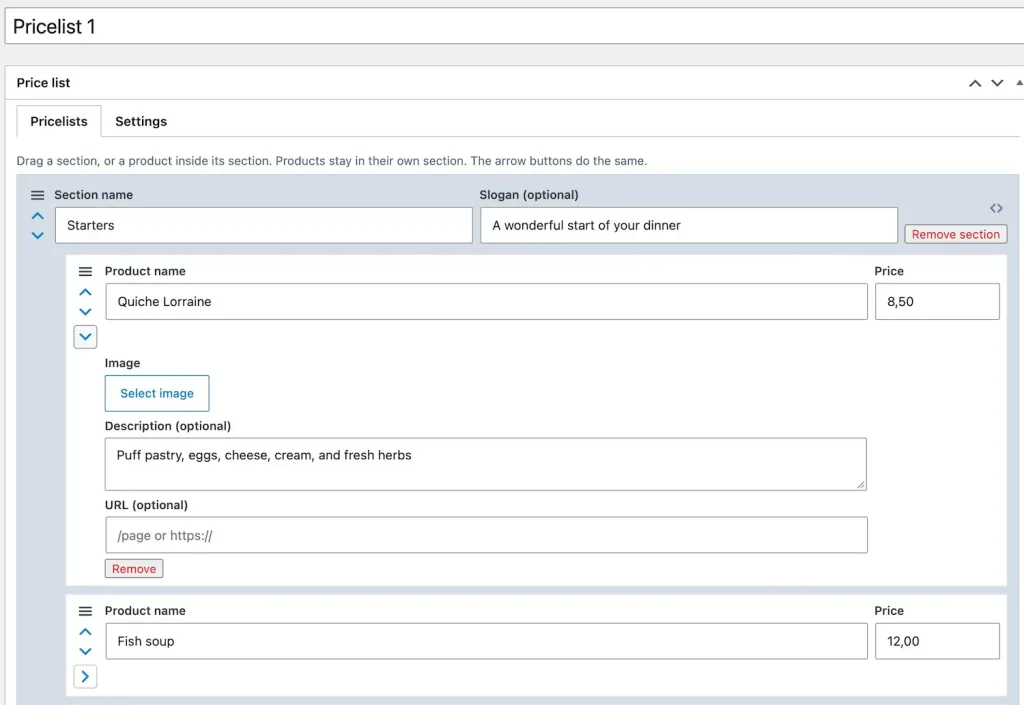
The list builder is straightforward to work with.
There are 3 hierarchy levels
- Pricelist
- Sections of that specific pricelist
- Products in the section
Graphical draggable interface
- You see the products in the section.
- Products can be dragged to another position within that same section.
- Sections can be dragged to another position within the pricelist.
- Dragging can be done using a device such as a mouse, by hand on a touchscreen, or by using the arrow keys.
- Every product is collapsible. Collapsed it shows the product name and price only.
- Note: Selecting an image and the <> class per section are Pro features.
General
CSS loading
- The stylesheet is merely registered on each page; the browser only loads the file if the shortcode appears on that page.
- For a standard post or page, this happens via the content:
- if
[insight_pricelist]is present in the text, the CSS is added to the<head>section. - If the shortcode appears elsewhere—such as in a widget or a template—the CSS is loaded at the moment the shortcode is executed.
- if
- In the Pro version, the same applies to the CSS.
- The tab script is only loaded if the list in question uses the tab view.