CSS WooCommerce – adjust simply!
CSS for WooCommerce teaches you how to make adjustments to these excellent and for many indispensable WordPress plug-in. It is the most used sales and shopping cart system for WordPress websites.
WooCommerce hosted and de selfhosted plug-in
WooCommerce has two versions; a version that is hosted by them, and a plug-in for your own WordPress website (so self hosted by you). The CSS-code here is for the WooCommerce plug-in.
WooCommerce hosted and de selfhosted plug-in
WooCommerce has two versions; a version that is hosted by them, and a plug-in for your own WordPress website (so self hosted by you). The CSS-code here is for the WooCommerce plug-in.
Adjust WooCommerce to your industry
Although the WooCommerce plug-in is very flexible, it is technically impossible to adjust the WooCommerce to any industry, in terms of functionality and appearance with the standard settings. That is why you almost always need CSS to make the desired changes. For example, selling a physical product is very different from a booking system for courses. That is why there are two methods to adjust the functionality of WooCommerce; plug-ins and CSS. Plug-ins have two disadvantages.
- It is not advisable to install a whole plug-in for just one simple adjustment; a little CSS is often the only right solution.
- There is no plug-in for every adjustment.
- Not every plug-in is compatible with every theme, or any plug-in that you also use.
- CSS code has fewer problems; it is ‘pure’.
CSS and WooCommerce: perfect together
CSS is the ideal way to adjust WooCommerce elements easily and even completely hide if necessary. With some CSS code, you can adjust WooCommerce to the layout of your website, and for your target group. Note: by hiding, we do not mean that an object or text actually has been removed; it’s only hidden from the visitor of your website.
WooCommerce-adjustments
Here are some practical applications of CSS for WooCommerce. We show you how to place the code. Note: the WooCommerce plug-in makes frequent use of cache. This means that it can sometimes take an hour or more before the changes are visible. Temporary switching off the cache is often the best. Furthermore, make sure you empty the cache plug-in after you have switched it on again; otherwise, you’ll see and show the website according to the cache of the site before the adjustments.
CSS to hide the WooCommerce magnifying glass on product pages
WooCommerce shows a magnifying glass icon, in addition to the photos of each product or service.
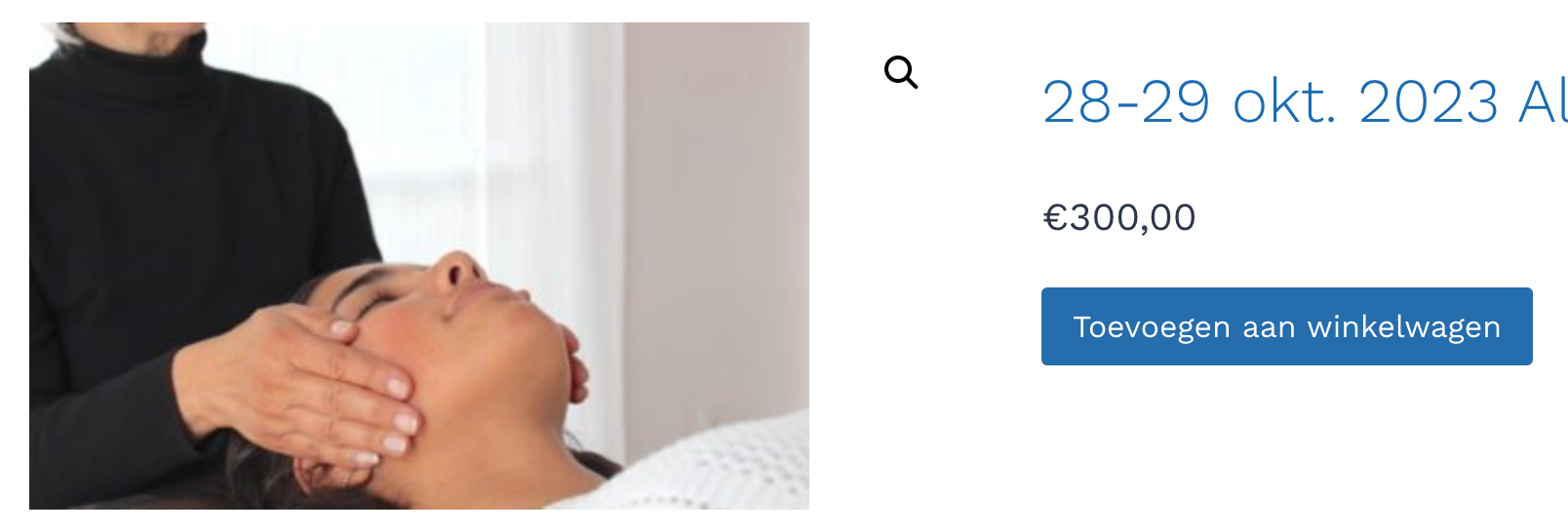
This CSS code ensures that the magnifying glass icon is no longer displayed in WooCommerce. You can place the code in the extra CSS of your theme or in a snippet manager.
/* CSS WooCommerce - hides magnifying glass on WooCommerce product pages */
.woocommerce-product-gallery__trigger
{ display:none !important;
}
CSS WooCommerce – hides all images on product pages
By default WooCommerce shows images of each product or service. With this CSS code, you can ensure that these WooCommerce images are no longer shown. You can place the code in the extra CSS of your theme.
/* CSS WooCommerce - Hides images of Woo products*/
.wp-post-image {
  display:none !important;
}
CSS for if you want to hide the ‘Add’ buttons in the ‘Quick View’
WooCommerce shows ‘Add’ buttons in the Quick View. With this CSS code, you ensure that they are no longer shown. You can place the code in the extra CSS of your theme.
/* CSS WooCommerce - hides dthe 'add' buttons */
.ajax_add_to_cart  {
  display: none !important;
}
CSS to hide WooCommerce related products
By default, WooCommerce shows related products at the bottom of products or in the shopping cart. By using this CSS code, you can ensure that they are no longer shown. Place the CSS code in the extra CSS of the theme.
/* CSS WooCommerce - hide related products */
.related.products {
display: none;
}
Always explore the possibilities of the theme first
Many themes, such as Kadence theme (Pro), already have several options to set WooCommerce to your liking. Once you have made those adjustments, you can see what you miss, and apply some CSS code to make the desired changes. This is important because it is the ‘user experience’ of the visitor, that determines whether your web store will be a success. Whatever theme you use, the (paid) pro or premium version of a theme often has many more options for WooCommerce adjustments.
Even the Kadence theme, which has so much to offer in the free version, has considerably more options in the Pro version. A theme such as GeneratePress is also much more complete in the Pro version. That is why we really recommend the pro version of a theme, especially if you use WooCommerce.
Even the Kadence theme, which has so much to offer in the free version, has considerably more options in the Pro version. A theme such as GeneratePress is also much more complete in the Pro version. That is why we really recommend the pro version of a theme, especially if you use WooCommerce.
Placing CSS code
We assume that you already know how to place CSS. If you don’t know that yet, look here: